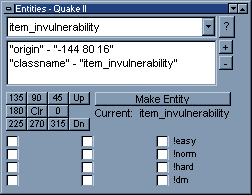
Entity window.
Elements of the entity window from top to bottom:
Entity dropdown list - list of all entities available for the current game
? - help for the selected entity.
Key pair list - current key/pair values for the selected entity.
+ - Add a new key/pair value.
- - Remove a selected key/pair value.
Angle buttons, Up, Down - Set angle of selected entity.
Clr (Color) - Set _color key of selected entity.
Make Entity - Turns the selected world brush into an entity of the current
selected type.
Flags - Set entity flags for the selected entity. An exclamation point in the
description is usually used to mean "not." For example, checking "!easy" will hide
an entity in "easy" game mode. Flags without a description means that its not
supported by the game.
Connecting Entities
Entities can be connected automatically from using the XY view. Select a starting
entity, and then Ctrl+left click the target entity. This will generate the "target" key
for the start entity, and a "targetname" for the target.
Revert entity to world
Entities that look like ordinary brushes, such as func_walls, can be turned back
into normal non-entity world brushes with the Revert to world feature. This
option can be found in the Edit menu. Currently, this feature requires only one
entity be selected at a time.