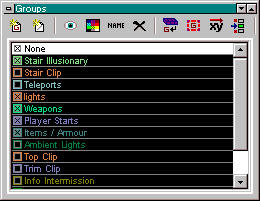
The Group Window lets you create groups of objects which can be shown or hidden, or have
other operations performed on them. Additional options are available by right-clicking items in the
list.
Group Window with toolbar
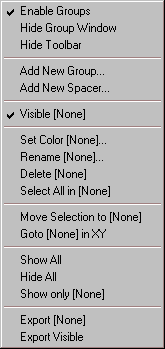
Menu
Right-click option menu
Enable Groups
Unchecking this item will show all objects and disable the effects of grouping.
Hide Group Window
Hides group window...
Show/Hide Toolbar
Toggles visibility of the group toolbar.
Move Up
Moves selected group up. Group "None" cannot be moved.
Move Down
Moves selected group down.
Add New Group
Creates a new group and prompts for name and color. No items will be initially
added to this group.
Add New Spacer
Creates a spacer that can be used to organize your groups.
Visible [group]
Toggles visibility of items in group.
Set Color [group]
Changes color of group or spacer.
Rename [group]
Renames selected group.
Delete [group]
Deletes the selected group. Brushes and entities in the group are moved to
"None" group.
Select All in [group]
Selects all brushes in the selected group.
Move Selection to [group]
Current brush and entity selection is added to the selected group.
Goto [group] in XY
Moves XY windows to the center point of the group.
Show All
Shows all groups
Hide All
Hides all groups
Show Only [group]
The selected group is made visible and all other groups are hidden.